
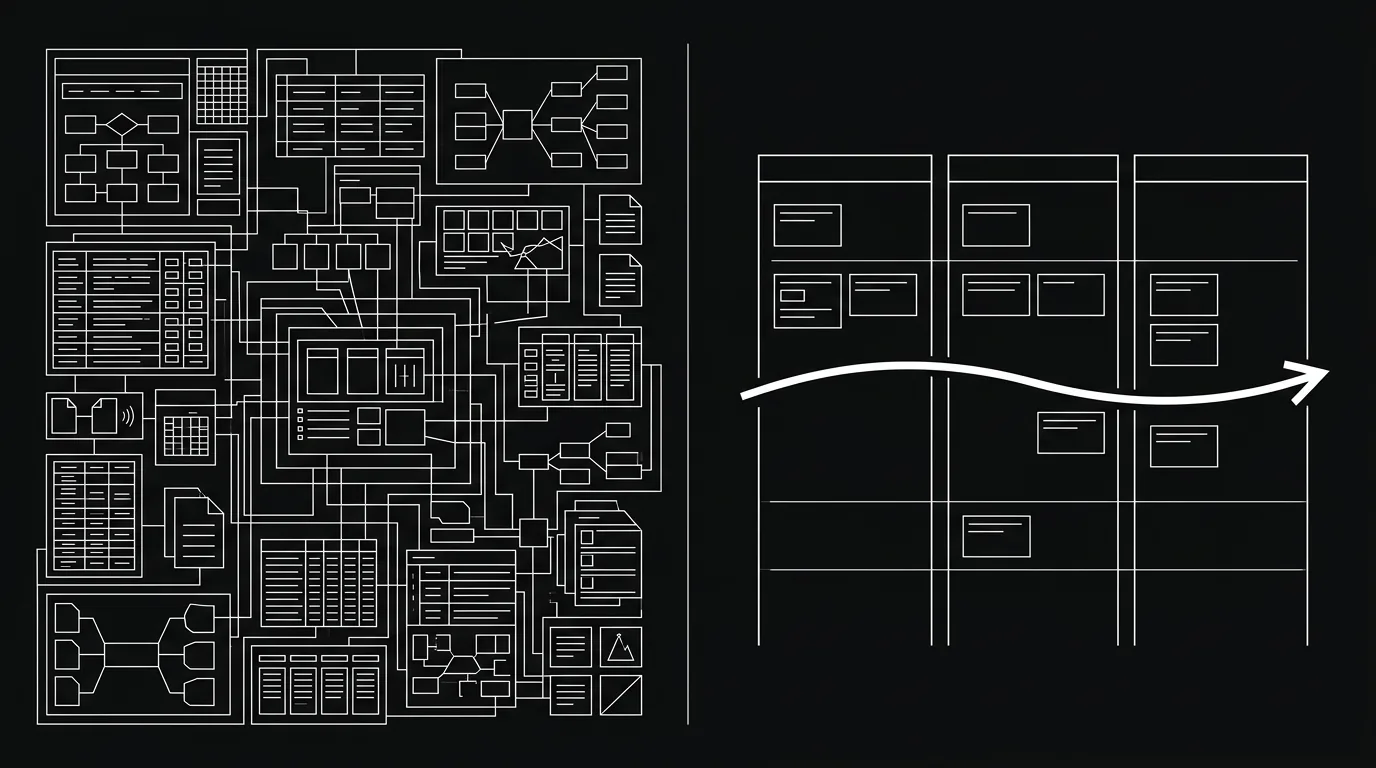
Should you use Notion or Hypertask? The honest one-line answer: they do different jobs. Notion is a flexible workspace and docs tool you can bend into a task manager. Hypertask is a dedicated task board built for keyboard speed and AI agents.
If your main need is a knowledge base, a wiki, structured databases, and richly formatted docs, Notion is the better tool and it isn’t close. If you’re searching for a Notion alternative for daily task execution, with humans and AI agents working the same board, that’s the job Hypertask was built for.
In our experience, most teams who compare the two end up keeping both. A real pattern from our own customers: write the spec in Notion, run the tasks in Hypertask. This post is about where each one actually fits, with no pretending one tool wins everything.
The Bottom Line
- Notion is a workspace and docs tool with project boards bolted on; Hypertask is a dedicated task board.
- Pick Notion for wikis, databases, templates, and long-form docs. Pick Hypertask for fast daily task execution and AI agent access.
- Many teams run both: the spec lives in Notion, the work runs in Hypertask.
- Hypertask ships a native MCP server and CLI, so AI agents read, claim, and update tasks on the same board you use.
Where Notion Excels: Docs, Wikis, and Databases
Notion is best at being one flexible home for everything that isn’t a fast-moving task. Docs, wikis, knowledge bases, meeting notes, structured databases, and reusable templates all live comfortably in one place. If you want a single tool to hold how your company thinks, Notion is hard to beat.
Its core strength is flexibility. You can model almost any structure: a CRM, a content calendar, a product spec, a help center. The database views (table, board, gallery, calendar) let you reshape the same data without rebuilding it. For knowledge that needs structure but not speed, this is genuinely powerful.
Templates and adoption help too. Plenty of teams already live in Notion, so onboarding is low-friction. One founder who runs his team in Notion told us his workspace already held his docs, his wiki, and his early task lists before he ever looked elsewhere. That gravity is real, and it’s a fair reason to stay.
Notion also has a free tier and paid plans priced per seat, which feels familiar and low-risk to most teams. You can start small and grow into it. For docs-heavy work, you may never need anything else.
One more thing worth naming: Notion is good at relationships between information. You can link a project page to its tasks, its notes, and its owner, all in one connected graph. When your real problem is “where does our knowledge live,” that linking is exactly what you want. None of this is a knock on Notion. It’s a description of the job it’s actually good at.
The Bottom Line
- Notion wins on docs, wikis, knowledge bases, flexible databases, and templates.
- Its flexibility lets you model almost any structure without custom tooling.
- Existing adoption and a familiar per-seat price make it easy to stay.
Notion’s Limits as a Daily Task Manager
Notion struggles as a daily task manager for the same reason it’s great everywhere else: it’s built to be flexible, not opinionated. A board in Notion is one view of a database among many. It works, but it asks you to design your own system before you can use it.
That flexibility has a cost. Every team builds its task setup slightly differently, and most of them drift. The board needs maintenance: someone defines the properties, someone keeps the views tidy, someone reminds everyone to update status. When that upkeep slips, the board stops reflecting reality, which is the failure mode behind why so many task boards go stale.
We hear a consistent theme from people who tried to run everything in one do-it-all tool. One agency owner who’d used a similar all-in-one tool put it plainly: it tried to be everything, so it wasn’t quite good at any one thing for them. Notion isn’t the worst offender here, but the flexible-workspace tradeoff is the same.
Speed is the other gap. Running tasks all day means hundreds of small actions: open, move, comment, reassign, close. A docs-first tool optimizes for editing pages, not for blitzing through a task queue with your hands on the keyboard. The friction adds up.
There’s also the question of what an empty board asks of you. In Notion, a blank task setup is a small design project: which properties, which views, which statuses, who maintains it. Some teams enjoy that control. Others just want to start working. If you’ve ever spent an afternoon building the perfect board and then watched it go stale a week later, you know the tradeoff. Flexibility you don’t use is just overhead.
The Bottom Line
- Notion’s flexibility makes it powerful for docs and weak as an opinionated daily task tool.
- A flexible board needs ongoing upkeep, and upkeep is the first thing teams drop.
- Page-editing speed is great for writing and slow for high-volume task work.
How Is Hypertask Different from Notion?
Hypertask is different because it’s not trying to be a workspace. As a Notion alternative for project management, it’s one opinionated task board, built so you (and your AI agents) can move through work fast. Where Notion gives you a blank canvas, Hypertask gives you a strong default and gets out of your way.
The design started from a complaint, not a feature list. The tool exists because complicated, do-everything tools felt like a tax. The fix was deliberately narrow: give you one view, let you rename and reorder columns, and stop there. No nested databases to design, no template gallery to wade through.
Three things separate it from a Notion board in daily use:
Keyboard-first speed. You drive the board with your hands on the keyboard. Triage, move, comment, and close without hunting for a menu. For people who live in their task tool, this is the difference between the tool serving you and you serving the tool.
A task-anchored inbox. Updates, replies, assignments, and agent output land in an inbox tied to the work, not in a separate notification firehose. This is the same async model behind reaching inbox zero every day: comms attach to tasks, so context doesn’t scatter across Slack threads.
Native AI agent access. Agents read, claim, and update tasks on the same board you use, through an MCP server (15 tools) and a CLI on npm. This isn’t an API you have to wire up yourself. More on that below.
The Bottom Line
- Hypertask is a dedicated, opinionated task board, not a flexible workspace.
- It optimizes for keyboard speed, an inbox-based comms model, and native agent access.
- The whole point is one strong default view instead of a blank canvas you have to design.
Can AI Agents Work Inside Notion and Hypertask?
This is where the two tools diverge most. Notion has an API and its own AI features, but a Notion workspace is still primarily a human-facing docs and database environment. Hypertask was built with external agent access as a first-class constraint, so an agent can participate on the board the same way a teammate does.
An external agent can technically read and write pages through Notion’s API. But for a project-board workflow, there’s no native Hypertask-style loop where Claude Code or another coding agent checks an inbox, claims a task, moves it to Doing, posts progress, and closes it through CLI or MCP. You’d build and maintain that integration yourself. For a one-off experiment that’s fine. For a daily workflow, the upkeep is the real cost.
Hypertask hands agents the same board you use through two access modes. The MCP server exposes 15 tools an agent can call directly inside Claude Code, Cursor, or Windsurf: list tasks, claim work, post a comment, check an inbox. The CLI (@hypertask/hypertask_cli on npm) suits scripted loops and cron jobs. The full tradeoff is covered in CLI vs MCP for AI agent data access.
The result is a board where a human and an agent see each other’s work in context. An agent moves a task to Doing, posts its result as a comment, and moves it to Done, all under its own handle, so you can tell human work from machine work. The broader case lives in our pillar guide on AI agents in project management.
The practical difference shows up the first time an agent finishes something. With a docs tool, you’d check the page yourself, copy the result somewhere, and update status by hand. With a board agents can operate, the agent posts its own update. You read it in your inbox when you’re ready. Voice-to-task capture fits the same spirit: speak a task while your hands are busy and it gets filed.
The Bottom Line
- Notion’s API and AI features are useful, but external agents still need custom work to run a native claim-and-update task loop.
- Hypertask gives agents the same board through a native MCP server (15 tools) and a CLI.
- Agents act under their own identity, so human and agent work stay distinguishable in the task history.
Notion vs Hypertask: Side-by-Side
Here’s the at-a-glance view. Treat it as a fit guide, not a scorecard, because the two tools are aiming at different jobs.
| Dimension | Notion | Hypertask |
|---|---|---|
| Primary job | Flexible workspace for docs, wikis, databases, and lightweight project views | Dedicated execution board for humans and AI agents |
| Speed / keyboard | Excellent page editor; task work still feels like editing a database | Keyboard-first triage, move, comment, and close |
| AI-agent access | API and Notion AI; external agents need custom integration for task-board loops | Native MCP server and npm CLI, so agents read, claim, update, and comment on tasks |
| Notifications / inbox | Mentions, comments, email, and Slack-style routing can become another feed | Task-anchored inbox for assignments, replies, and agent updates |
| Structure / docs | Rich docs, relationships, templates, and database views | Minimal docs; one opinionated board with renameable and reorderable columns |
| Best for | Company wiki, specs, knowledge base, content calendars, lightweight databases | Daily execution, async project work, and agents operating the same board as humans |
A couple of pricing notes: Notion starts free, with paid plans priced per member and varying by region and billing cycle. Hypertask has a 7-day free trial and a paid Hypertask Seat + AI plan; the live details are on the Hypertask pricing page.
When Should You Use Notion, Hypertask, or Both?
Most teams don’t have to choose one forever. The cleanest way to decide is to match the tool to the job: docs and knowledge lean Notion, fast task execution and agents lean Hypertask. Plenty of teams run both side by side without friction.
Use Notion if:
- You need a company wiki or handbook.
- Your work is docs-first: specs, meeting notes, long-form writing, and structured databases like a content calendar or a lightweight CRM.
- You value flexibility and want to model your own structure.
- Your team already lives in Notion and adoption matters more than speed.
Use Hypertask if:
- You want keyboard speed, not page editing.
- You want one opinionated board instead of designing your own system.
- AI agents need to read, claim, and update real tasks: think a Claude Code session picking up a ticket, doing the work, and posting its result as a comment.
- You want internal comms attached to the work, not scattered across chat.
Use both if: your team writes specs and docs in Notion, then runs the actual work in Hypertask. This is a common, healthy split. One customer described exactly this: he writes the spec in Notion, and the tasks run elsewhere. The doc is the thinking; the board is the doing. There’s no rule saying both jobs belong in the same tool.
If you’re already running AI agents and want them on a board they can actually operate, that’s the clearest case for Hypertask as your Notion alternative on the task side, alongside whatever docs tool you keep. The setup takes minutes, not a migration.
For suite-first alternatives, the ClickUp comparison for AI-agent execution and the Asana fit guide for human-agent teams cover the tradeoffs between broad work management and a focused board.
The Bottom Line
- Match the tool to the job: docs and knowledge to Notion, fast tasks and agents to Hypertask.
- Running both is normal: spec in Notion, execution in Hypertask.
- The strongest reason to add Hypertask is wanting AI agents to operate real tasks, not pages.
Frequently Asked Questions
Is Hypertask a full Notion replacement?
No, and it doesn’t try to be. Notion is a workspace for docs, wikis, and databases; Hypertask is a dedicated task board. If you rely on Notion for knowledge management, keep it. Hypertask replaces the task-running part of your stack, not the documentation part.
Can I use Notion for docs and Hypertask for tasks at the same time?
Yes, and many teams do exactly that. A common pattern is writing the spec or project brief in Notion, then running the actual tasks in Hypertask. The two don’t conflict: one holds the thinking, the other runs the work. You keep Notion’s docs strength and gain a faster task board.
Why can’t I just run my AI agents inside Notion?
You can script Notion’s API, and Notion’s own AI features are useful inside the workspace. The gap is for external agents that need to run a project-board loop: check an inbox, claim a task, move it, post progress, and close it through structured access. Hypertask ships a native MCP server with 15 tools and a CLI, so agents read, claim, and update tasks on the same board you use. See CLI vs MCP for AI agent data access for the details.
Is Notion cheaper than Hypertask?
Notion starts free, with paid plans priced per member (see Notion’s pricing page; prices vary by region and billing cycle). Hypertask has a 7-day free trial and a paid Hypertask Seat + AI plan (see Hypertask pricing). The better question is fit: if you need a fast agent-ready task board, that’s what you’re paying Hypertask for.
Which tool is better for keyboard-first speed?
Hypertask is built for it. Running tasks all day means hundreds of small actions, and Hypertask lets you move, comment, and close from the keyboard without hunting through menus. Notion optimizes for editing pages, which is great for docs but slower for high-volume task work.
If you already write your specs in Notion and just want a faster place to run the work, try pointing your next project’s tasks at Hypertask while you keep the docs where they are. The 7-day trial doesn’t ask for a card, and if you run AI agents, the MCP setup takes a couple of minutes. Try Hypertask free.